Templates are pre-built activity structures that you can reuse to quickly create new activities for your students. By saving an existing activity as a template, you can efficiently replicate its settings, prompts, and overall design for future use.
Creating a Template
To create a template:
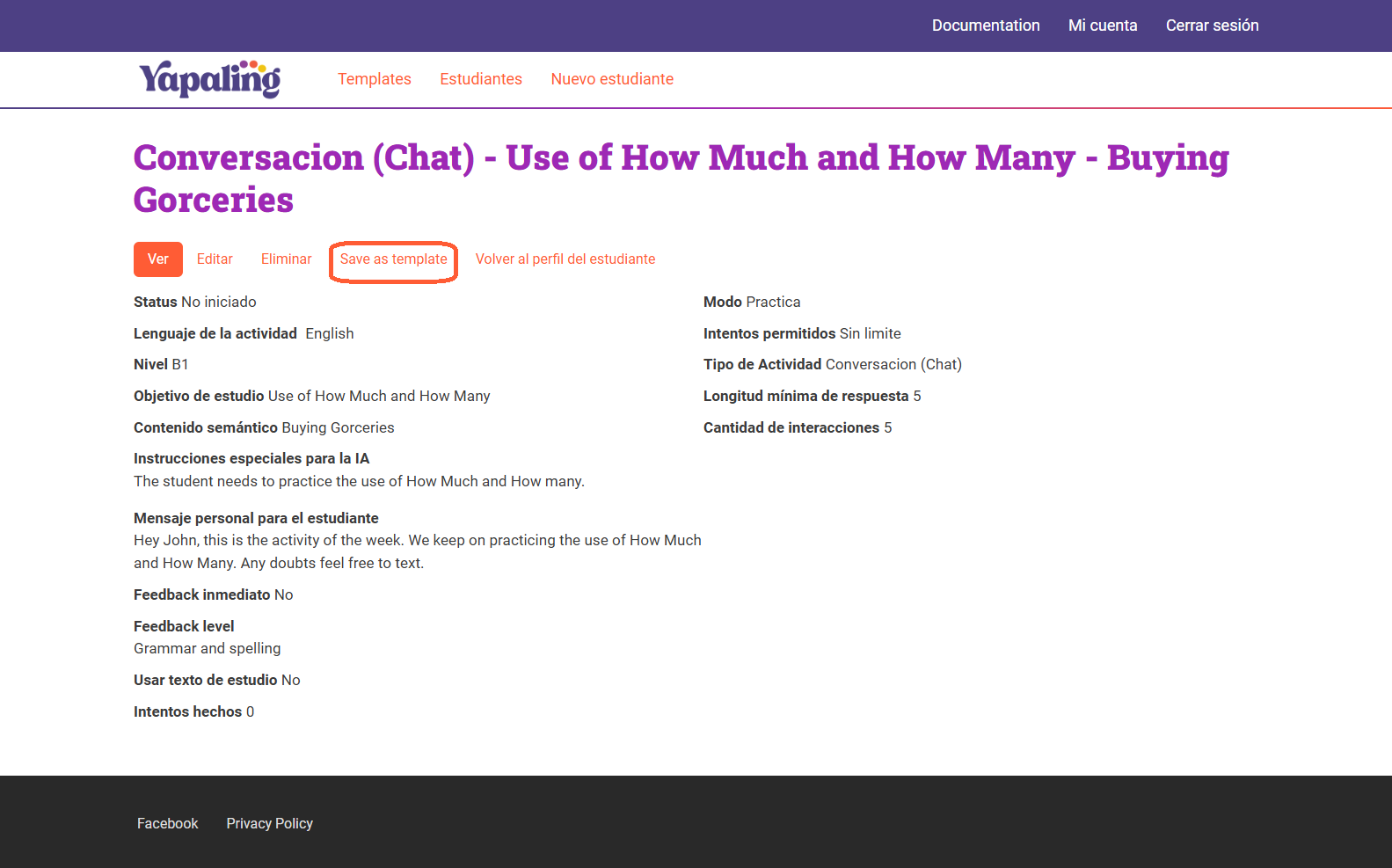
- Navigate to an Activity: Open the details page of an activity you want to use as a template.
- Save as Template: Click the "Save as Template" button.
Managing Your Templates
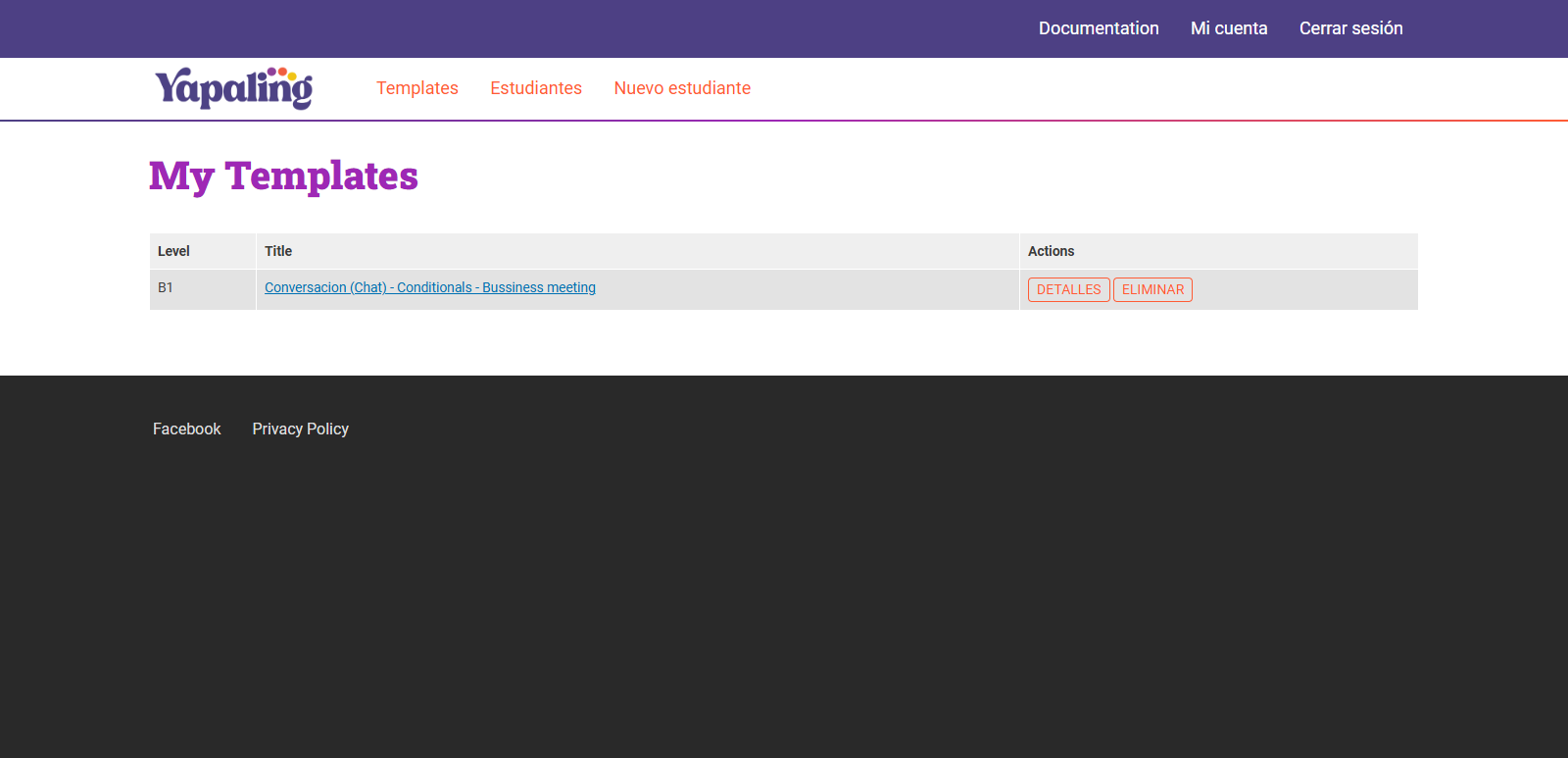
Your created templates are accessible in the "My Templates" section. Here, you can:
- View Template Details: Inspect the specific settings and prompts of a template.
- Edit Templates: Modify the details of a template to suit your needs.
- Delete Templates: Remove unwanted templates from your list.
Using Templates to Create New Activities
Templates can be accessed from various locations, including:
- Student Activity List Sidebar
- Student Profile Sidebar
When you click on a template, a "New Activity" form will appear, pre-filled with the template's information. You can then customize the activity as needed, such as:
- Modifying Prompts: Adjust the specific questions or instructions.
- Changing the Target Language: Specify a different language for the activity.
- Adjusting the Difficulty Level: Set the appropriate level for your students.
By leveraging templates, you can streamline your workflow, save time, and consistently deliver high-quality language learning experiences to your students.